视觉识别模块
0、学前先看&供电说明
1、固件下载与烧录
2、安装编程环境
3、调试运行例程
4、离线运行例程
5、Micropython 快速入门
6、GUI程序使用说明
7、二维云台安装教程
8、FPIOA引脚分配
9、RGB灯
10、蜂鸣器
11、按键
12、串口通信
13、I2C通讯
14、PWM
15、WDT看门狗
16、定时器计时
17、傅里叶变换
18、SHA256加密
19、AES加密
20、多线程
21、文件读写
22、图像显示
23、触摸显示
24、摄像头显示
25、图像翻转
26、照相机
27、绘制圆形
28、绘制矩形
29、绘制椭圆
30、绘制箭头
31、绘制十字准心
32、绘制文字
汝城县职业中等专业学校知识库-信息中心朱老师编辑
-
+
首页
11、按键
 ## 简介 本节我们来学习如何使用K230模块上的用户按键 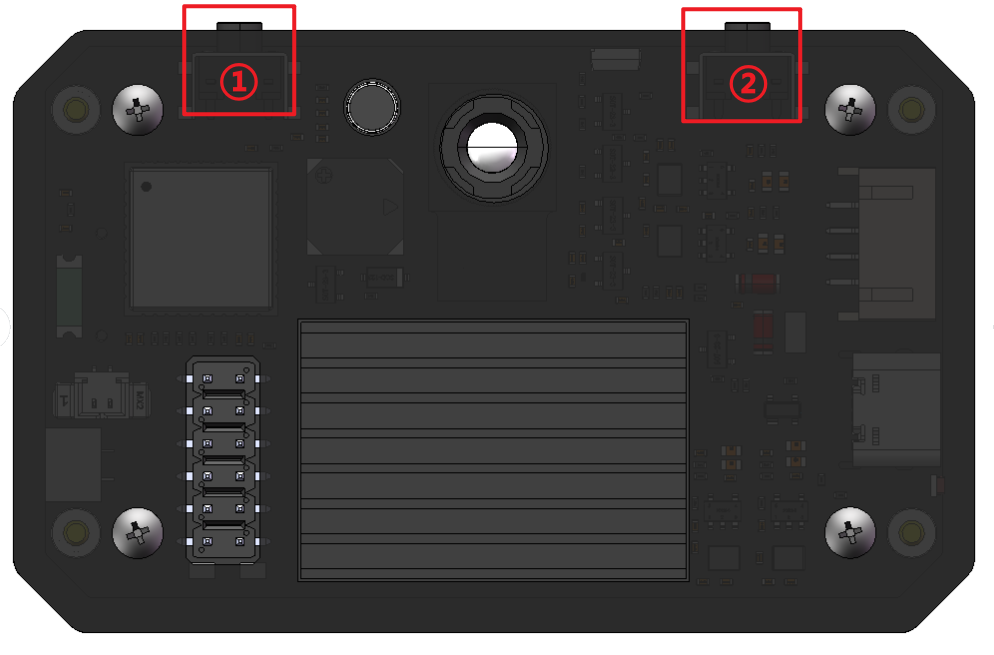 ① 该按键为我们可以使用的自定义按键,这节教程将介绍如何读取该按键的状态 ② 该按键为复位(RST)按键,按下后K230会进行重启 ## 快速开始 为了方便使用,我们将按键功能封装在ybUtils.YbKey这个库中 复制下面的代码到CanMV IDE中运行 \[源码汇总 / 02.Basic / 04.key.py\] from ybUtils.YbKey import YbKey import time \# 创建按键实例 \# create key key = YbKey() \# 持续监测按键状态 \# Monitor key status while True: if key.is\_pressed(): print("检测到按键按下", "pressed") time.sleep\_ms(100) \# 延时以避免过于频繁的检测 (Delay to reduce detect frequence) 运行这段代码后,我们可以尝试按下K230上的自定义按键①,观察到串行终端会在我们按下的时候有提示输出 > 注意不要按到RST键了。靠近USB线这一端的按键是RST复位键 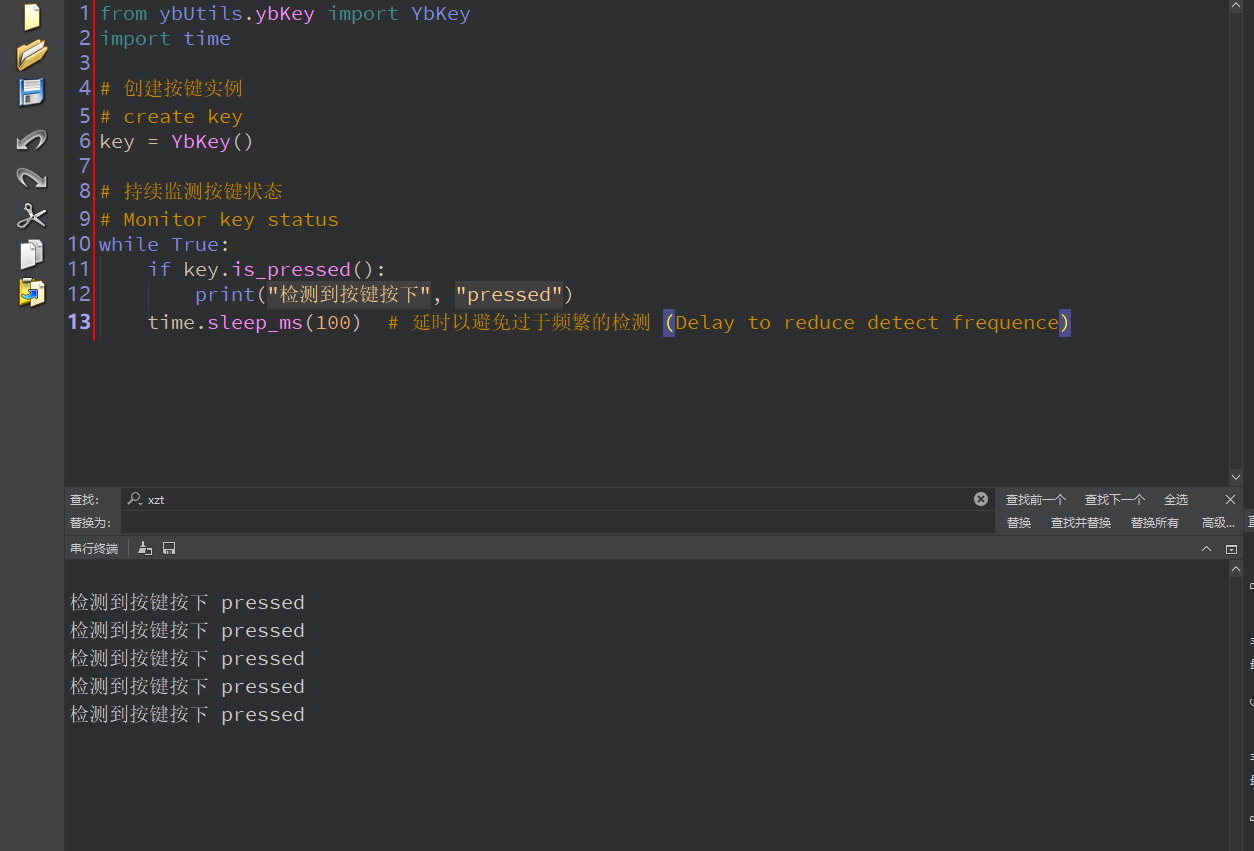 ## 使用FPIOA功能 下面是 YbKey 模块的原始代码 我们使用GPIO61作为按钮检测的引脚 \# 导入FPIOA(现场可编程I/O阵列)和Pin(引脚) \# (Import machine control modules, including FPIOA (Field Programmable I/O Array) and Pin) from machine import FPIOA, Pin \# 导入时间模块 (Import time module) import time class YbKey: """ 按键类,用于处理按键输入 (Key class for handling button inputs) """ def \_\_init\_\_(self): """ 初始化按键对象 (Initialize the key object) """ \# 创建FPIOA对象,用于配置引脚功能 \# (Create FPIOA object for configuring pin functions) self.\_fpioa = FPIOA() \# 设置使用的引脚编号为61 \# (Set the pin number to be used as 61) self.\_pin\_num = 61 \# 配置引脚功能: \# - 将物理引脚映射到GPIO功能 \# - ie=1:启用输入 \# - oe=0:禁用输出 \# (Configure pin function: \# - Map physical pin to GPIO function \# - ie=1: enable input \# - oe=0: disable output) self.\_fpioa.set\_function(self.\_pin\_num, FPIOA.GPIO0 + self.\_pin\_num, ie\=1, oe\=0) \# 创建Pin对象: \# - 设置为输入模式 \# - 启用内部上拉电阻(按键未按下时保持高电平) \# - 驱动强度为7 \# (Create Pin object: \# - Set to input mode \# - Enable internal pull-up resistor (maintains high level when button is not pressed) \# - Drive strength is 7 (maximum)) self.\_key = Pin(self.\_pin\_num, Pin.IN, pull\=Pin.PULL\_UP, drive\=7) def value(self): """ 获取按键的当前值 (Get the current value of the key) 返回值:0表示按下,1表示未按下 (Return value: 0 means pressed, 1 means not pressed) """ return self.\_key.value() def is\_pressed(self): """ 判断按键是否被按下 (Determine if the key is pressed) 返回值:True表示按下,False表示未按下 (Return value: True means pressed, False means not pressed) """ \# 当按键被按下时,由于上拉电阻配置,引脚值变为0 \# (When the button is pressed, due to the pull-up configuration, the pin value becomes 0) return True if self.\_key.value()==0 else False
admin
2025年12月30日 14:11
转发
收藏文档
上一篇
下一篇
手机扫码
复制链接
手机扫一扫转发分享
复制链接
分享
链接
类型
密码
更新密码
有效期
Markdown文件
Word文件
PDF文档(打印)
AI